


Introduction
As a software engineer and technical documentation enthusiast, I’ve always struggled with the gap between creating professional system diagrams and getting them into shareable, living documentation. The process typically involved endless export-import cycles, version control nightmares, and manual updates that never seemed to end. When I heard about Visual Paradigm’s OpenDocs adding AI-powered Data Flow Diagram support with seamless WordPress integration, I decided to put it to the test. This is my hands-on review and comprehensive guide based on weeks of using this workflow in real projects.

Discovering AI-Powered Data Flow Diagram Support in OpenDocs
First Impressions
When I first logged into OpenDocs and saw the new Data Flow Diagram capabilities, I was genuinely excited. As someone who regularly documents system architectures and business processes, DFDs are essential tools in my toolkit. What impressed me immediately was that OpenDocs didn’t just add basic DFD support—they included multiple industry-standard notations:
- Yourdon DeMarco DFD
- Yourdon & Coad DFD
- Gane Sarson DFD
This level of flexibility meant I could match the notation style my team was already familiar with, rather than forcing us to learn a new convention.
The AI DFD Generator: A Game Changer
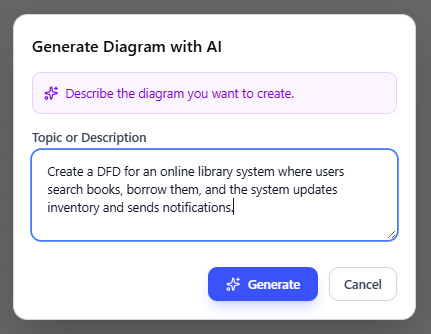
The standout feature for me was undoubtedly the AI Data Flow Diagram generator. I remember my first attempt: I simply typed in natural language:
“Create a DFD for an online library system where users search books, borrow them, and the system updates inventory and sends notifications.”
Within seconds, the AI generated a complete, well-structured Data Flow Diagram with processes, data flows, external entities, and data stores already in place. Here’s what the AI-generated result looked like:
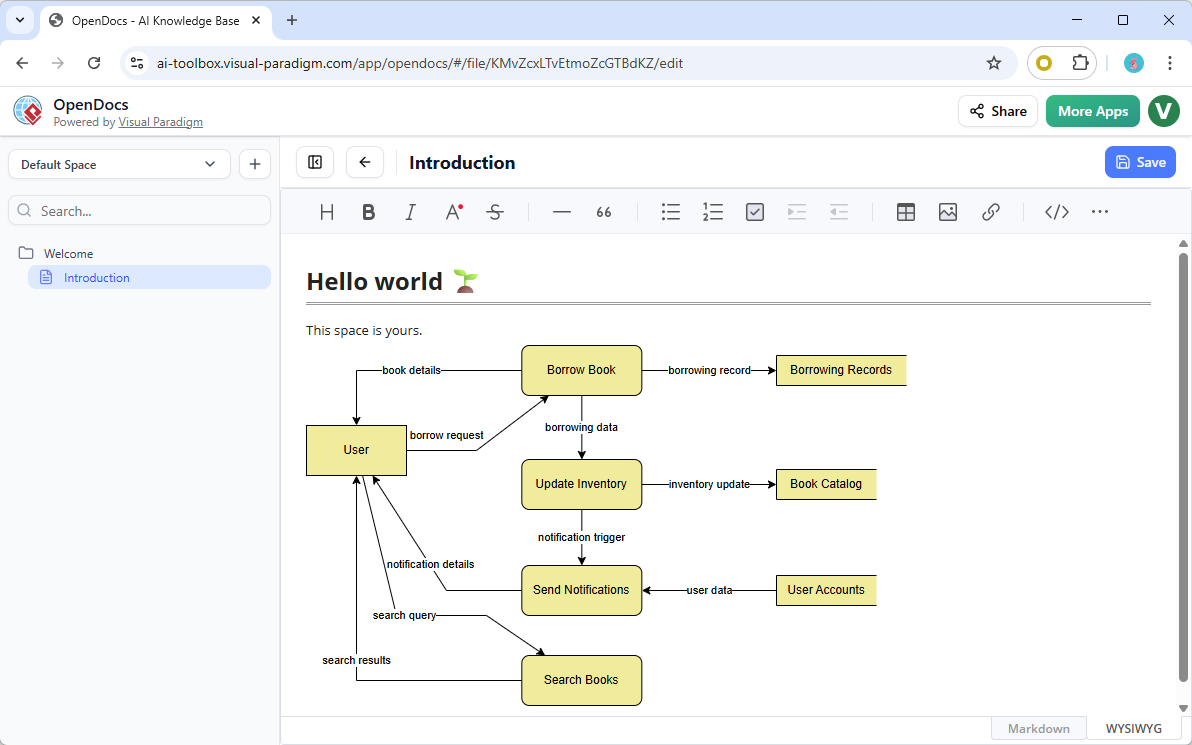
What struck me was how accurate it was right out of the box. The AI understood the context and created logical connections between components. Of course, I still needed to make some adjustments, but it saved me at least an hour of manual diagramming work.
Here’s the interface where I entered my AI prompt:
Refining the Diagram
After the AI generated the initial diagram, I appreciated being able to refine it using the full-featured editor. The editing experience was smooth and intuitive:
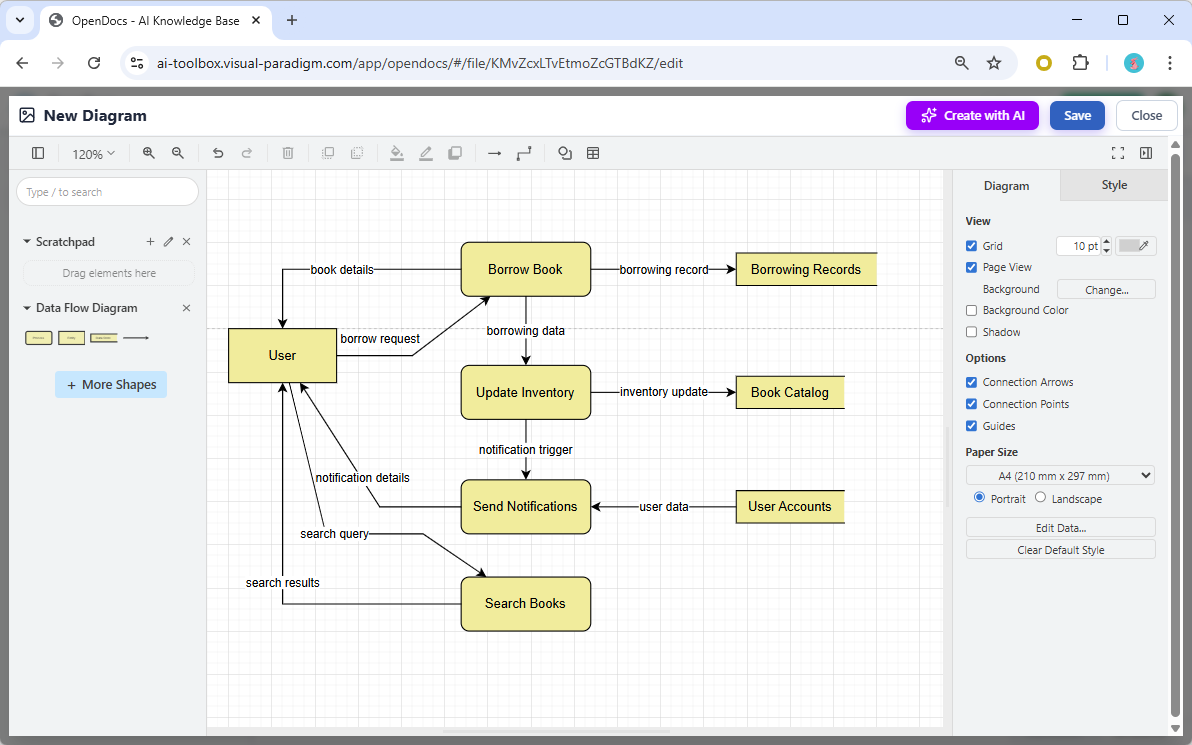
The caption notes this particular DFD received manual touch-ups for layout, which is exactly what I did. The AI got the structure right, but I could fine-tune the positioning and styling to match my documentation standards.
How I Use Data Flow Diagrams in OpenDocs
Through my experience, I’ve found two primary ways to work with DFDs in OpenDocs:
1. Embedding Diagram Components in Pages
I love that I can insert live, editable DFDs directly into my document pages. This means my technical documentation isn’t just text with static screenshots—it contains rich, interactive diagrams that team members can explore. When I update the diagram, it automatically updates everywhere it’s embedded.
2. Creating Dedicated Component Pages
For complex systems requiring detailed analysis, I create standalone Component Pages focused entirely on the DFD. This is perfect for:
- Deep-dive system architecture reviews
- Stakeholder presentations focusing on specific data flows
- Documentation that needs to be shared independently
Both approaches support full editing, customization, and real-time updates across collaborative Spaces, which has been crucial for my distributed team.
The Visual Paradigm → OpenDocs → WordPress Workflow: My Experience
Why This Pipeline Changed My Workflow
Before discovering this workflow, my process looked something like this:
- Create diagram in Visual Paradigm Desktop
- Export as PNG/SVG
- Upload to WordPress media library
- Insert into post
- Repeat steps 2-4 every time the diagram changed
It was tedious, error-prone, and created version control nightmares. The VP Artifacts → OpenDocs → WordPress workflow eliminated all of that.
Step-by-Step: How I Use the Pipeline
Step 1: Create Artifacts in Visual Paradigm
I design my professional diagrams (UML, BPMN, ArchiMate, or now DFDs) using Visual Paradigm Desktop or Visual Paradigm Online. The desktop application gives me powerful modeling capabilities, while the online version is great for quick edits.
Step 2: Send to Pipeline
Instead of exporting images manually, I use the “Pipeline” button to securely push these artifacts to a centralized cloud repository. This single action replaced my entire export-upload routine.
Step 3: Embed in OpenDocs
I open OpenDocs and pull these live artifacts directly into my pages. What I love most is that I can mix:
- Rich text documentation
- AI-generated visuals
- Technical diagrams from Visual Paradigm
All in one cohesive environment.
Step 4: Export to WordPress
Using the WordPress integration, I selectively publish my OpenDocs pages directly to my existing WordPress site. The diagrams appear as fully functional, professional elements on the published pages.
One-Time Setup: WordPress Application Password
The initial setup required generating an “Application Password” in my WordPress profile to authorize the connection. This took about 5 minutes, and after that, the integration worked seamlessly. The security model gives me peace of mind—I maintain control over what gets published.
Key Benefits I’ve Experienced
After using this workflow for several projects, here are the tangible benefits I’ve realized:
No More Manual File Management
I’ve completely eliminated the cycle of downloading, renaming, and re-uploading image files every time a diagram changes. This alone has saved me hours per week.
Living Documentation
My diagrams remain “diagram-aware” and re-editable within OpenDocs. When I update the master model in Visual Paradigm, those changes can sync across the pipeline. This means my documentation is always current without manual intervention.
Granular Security Control
I maintain a secure, comprehensive “master” knowledge base in OpenDocs while selectively publishing only specific subsets to WordPress for stakeholders or the public. This gives me the flexibility to keep sensitive architecture details internal while sharing appropriate views externally.
Professional Delivery
The quality of diagrams on my WordPress site is exceptional. I’m delivering high-quality, diagram-rich technical content like system architectures and process models that look professional without any technical friction.
Efficiency Gains
Features like AI-powered diagram generation and rich content editing have accelerated my initial documentation creation significantly. What used to take me half a day now takes a couple of hours.
Why OpenDocs Stands Out for DFD Work
Based on my experience, here’s what makes OpenDocs the right choice for Data Flow Diagram needs:
- Centralized, collaborative knowledge hub — I have diagrams and text in one place, eliminating the scattered documentation problem
- AI acceleration — Rapid diagram creation means I can prototype system designs quickly
- No installation required — Being fully web-based means I can access my work anywhere
- Seamless integration — The ability to embed, edit, and share with ease has transformed my workflow
- Professional-grade results — The output is tailored for analysts, engineers, and teams who need publication-quality diagrams
This release builds on other recent additions including Flowchart, UML Deployment Diagram, and other DFD variants, making OpenDocs an increasingly comprehensive AI-powered knowledge management tool for visual storytelling and system documentation.
Getting Started: My Recommendation
If you’re considering this workflow, here’s my advice:
- Start with the OpenDocs landing page to understand how the feature fits into your workflow
- Try the AI DFD generator with a simple system description to see the quality firsthand
- Set up the WordPress integration if you publish technical content—it’s worth the 5-minute setup
- Experiment with embedding diagrams in your existing documentation to see the living document benefits
The tool is available to all users with a Visual Paradigm Online (Combo Edition) or Visual Paradigm (Professional Edition) license, so if you already have access, there’s no barrier to trying it.
Conclusion
After weeks of using OpenDocs’ AI-powered Data Flow Diagram support and the Visual Paradigm to WordPress pipeline, I can confidently say this has transformed how I create and share technical documentation. The combination of AI-assisted diagram generation, seamless integration between design tools and documentation platforms, and the ability to publish living diagrams to WordPress has eliminated the friction that used to plague my workflow.
What impressed me most wasn’t just the individual features, but how they work together as a cohesive system. The AI DFD generator gets me 80% of the way there in seconds, the editor lets me refine the remaining 20% with precision, and the pipeline ensures my diagrams stay synchronized from design to publication. For anyone serious about technical documentation, system architecture visualization, or knowledge management, this workflow is worth exploring.
The future of documentation isn’t static pages with outdated screenshots—it’s living, AI-enhanced, seamlessly integrated knowledge bases that evolve with your systems. OpenDocs is leading that charge, and based on my experience, it’s a tool that delivers real productivity gains from day one.
References
- Sync AI Diagram to OpenDocs Pipeline Guide: Comprehensive guide on sending AI-generated diagrams from Visual Paradigm to OpenDocs via the Pipeline feature for streamlined documentation workflows.
- Export OpenDocs Knowledge Bases Directly to WordPress: Official release announcement detailing the WordPress integration feature that allows selective publishing of OpenDocs pages to WordPress sites.
- Visual Paradigm Pipeline: The Bridge for AI Modeling Ecosystem: Documentation explaining how the Pipeline feature serves as a bridge between Visual Paradigm design tools and the broader AI modeling ecosystem.
- Streamline Documentation Workflow with Visual Paradigm Desktop to OpenDocs: Video tutorial demonstrating how to send diagrams from Visual Paradigm Desktop directly into the OpenDocs pipeline for efficient documentation management.
- Visual Paradigm Online to OpenDocs Export: Release notes covering the export functionality from Visual Paradigm Online to OpenDocs for cloud-based diagram integration.
- My Journey to Seamless Documentation: Sending Visual Paradigm Creations Directly to OpenDocs: Personal user experience and case study detailing the practical benefits and workflow improvements from using the Visual Paradigm to OpenDocs integration.
- Visual Paradigm OpenDocs: The Complete Developer’s Guide to AI-Powered Technical Documentation: Comprehensive developer guide covering AI-powered features, diagram generation, and best practices for technical documentation with OpenDocs.
- OpenDocs Page-Based Sharing Update: Feature update explaining granular sharing controls and security enhancements for selective content publishing in OpenDocs.
Related posts:
 My First Week with OpenDocs’ AI ERD Generator: A Hands-On Review from a Database Developer
A Comprehensive Review of Visual Paradigm Pipeline’s Asset Transit Hub
Beyond Static Docs: A Hands-On Review of Visual Paradigm OpenDocs as a Living Knowledge Engine
Mastering Visual Paradigm OpenDocs: A Complete Guide to Integrated AI Diagramming
My First Week with OpenDocs’ AI ERD Generator: A Hands-On Review from a Database Developer
A Comprehensive Review of Visual Paradigm Pipeline’s Asset Transit Hub
Beyond Static Docs: A Hands-On Review of Visual Paradigm OpenDocs as a Living Knowledge Engine
Mastering Visual Paradigm OpenDocs: A Complete Guide to Integrated AI Diagramming