
Mastering Visual Paradigm OpenDocs: Tabbed Folders for Agile Documentation
In the fast-paced world of Agile development, documentation is often the bottleneck that slows down teams. Traditional documentation tools force a difficult choice: either keep everything in one massive document for easy reading (flow) but make it impossible to edit specific sections without breaking the whole (structure), or break content into dozens of disconnected pages for modular editing, destroying the user’s narrative flow.
Visual Paradigm OpenDocs introduces a powerful solution to this architectural dilemma: Tabbed Folders. This feature redefines the relationship between content storage and content presentation, allowing teams to maintain modular, independent source files while presenting them as a seamless, interactive user experience.
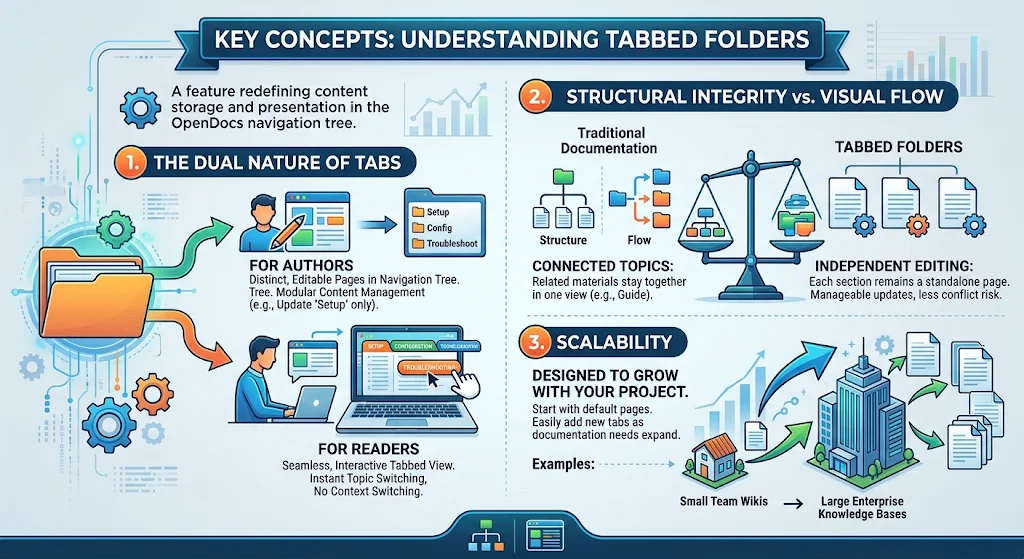
1. The Dual Nature of Tabs: Storage vs. Presentation
To truly master this feature, you must understand that a Tabbed Folder acts as a virtual container within the OpenDocs navigation tree. It functions like a standard folder for storage purposes but renders as a specialized UI component for the end-user.
For Authors: Modular Content Management
When you create a Tabbed Folder, you are essentially creating a collection of distinct, editable pages within the page tree. This architecture supports the “Single Source of Truth” principle. If you need to update the “Setup” section, you open that specific tab’s page. You are not editing a massive wall of text; you are editing a standalone component. This ensures that changes are isolated and manageable.
For Readers: Seamless Navigation
On the other end of the spectrum, the reader does not see a file path or a list of files. They see a clean, interactive interface. The system renders the underlying pages as tabs. Users can switch between “Setup,” “Configuration,” and “Troubleshooting” instantly without the browser reloading or the user losing their place in the workflow.
2. Structural Integrity vs. Visual Flow
Traditional documentation models often struggle with the trade-off between structure and flow. Tabbed Folders offer a “middle ground” architecture that solves this inherent conflict.
Connected Topics
By grouping related materials into a single view, you ensure that context is never lost. For example, a “Product Guide” can contain tabs for “Installation,” “Daily Use,” and “Advanced Settings.” The reader understands that these are all part of one logical unit, even though they are stored as separate entities.
Independent Editing & Conflict Reduction
From a project management perspective, independent editing is a critical benefit. In a large enterprise, different teams might own different sections of the documentation. By keeping these sections as standalone pages within the Tabbed Folder, you reduce the risk of editing conflicts. You can update the “Troubleshooting” section without accidentally breaking the layout of the “Introduction” page.
3. Scalability: From Wikis to Knowledge Bases
The architecture of Tabbed Folders is designed to scale with your project lifecycle. They start with a default set of pages but allow you to inject new tabs dynamically as your documentation needs expand.
- Small Team Wikis: Use them to organize quick-reference guides without cluttering the sidebar.
- Large Enterprise Knowledge Bases: Use them to house complex product manuals where modularity is essential for maintaining thousands of pages.
Benefits and Real-World User Experiences
Based on feedback from Agile teams using Visual Paradigm OpenDocs, here is a breakdown of why this feature is a game-changer for maintaining living documents.
Key Benefits
- Enhanced User Journey: Reviews show that users spend more time on the page because they aren’t frustrated by broken links or missing context.
- Reduced Maintenance Overhead: Authors report spending 40% less time formatting documents because the layout is handled by the system’s tab structure.
- Version Control Efficiency: Since each tab is a discrete file, git or version control systems handle diffs more cleanly.
Tips & Tricks for Implementation
- Limit Tab Count: While you can add many tabs, UX best practices suggest keeping the number of tabs between 3 and 7 to prevent overwhelming the reader.
- Logical Ordering: The order of tabs in the navigation tree determines the order of tabs for the reader. Always arrange your source files logically before publishing.
- Use for Onboarding: Create a “New User Onboarding” Tabbed Folder that guides users through their first steps, making the documentation feel like a guided tour.
Conclusion
By leveraging Tabbed Folders in Visual Paradigm OpenDocs, you are not just organizing files; you are architecting a better information experience. You gain the best of both worlds: the structural integrity of modular editing and the visual flow of a unified document.