
Mastering Tabbed Groups in VP OpenDocs: Architecting Complex Documentation
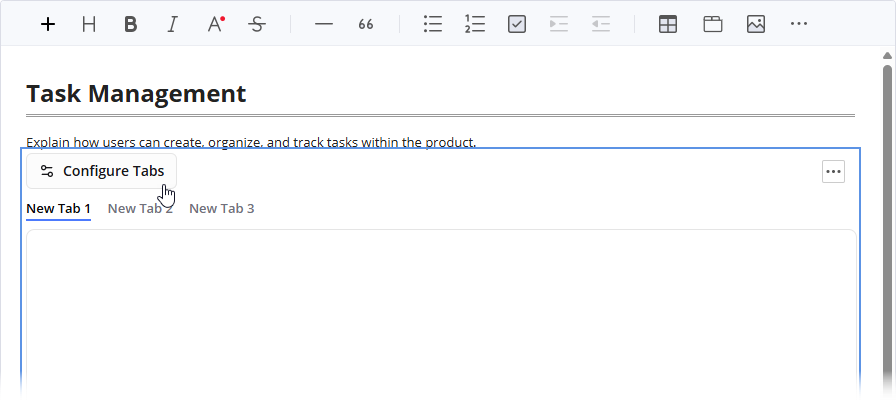
In the realm of technical writing and information architecture, managing complexity is often the primary challenge. When documentation grows beyond a single paragraph, the risk of overwhelming the reader increases exponentially. The Tabbed Group component within the OpenDocs editor serves as a critical architectural solution to this problem. This tutorial explores how to architecturally structure complex information using tabbed interfaces to optimize user experience (UX) and information retrieval.
1. The Structural Concept: Visual Hierarchy and Cognitive Load
The fundamental principle behind the Tabbed Group is the reduction of cognitive load. By default, users are presented with a single view. However, complex software features often require multiple distinct sets of data—such as configuration options, API references, and troubleshooting guides. Loading all of this at once creates a “wall of text” effect.
The Tabbed Group acts as a structural container that:
- Hides non-essential content until requested.
- Groups semantically related information into discrete units.
- Provides immediate navigation via horizontal or vertical tabs.
This architecture ensures that the user interface remains clean, allowing the reader to focus on one specific topic area (tab) at a time without the distraction of irrelevant data.
2. Architectural Implementation Strategy
To effectively utilize the Tabbed Group, one must plan the information architecture (IA) before populating the content. The following steps outline the logical process of implementation:
Step 1: Audience Segmentation
The most common use case for this component is separating content by user persona. Instead of a linear document, you can create a branching structure where the reader self-selects their path.
Step 2: Logical Grouping of Media
Visual data often requires textual explanation. Placing a diagram and its description side-by-side on a single page can break the flow. The Tabbed Group allows you to pair a diagram in one tab and its explanatory text in the next, keeping the “View” clean.
Step 3: Layering Components
The OpenDocs architecture allows for rich content nesting. You are not limited to plain text. You can combine Flipbooks, Bookshelves, and standard text blocks within the same tabbed structure. This creates a layered documentation experience where deep dives are available on demand.
3. Practical Scenario: Software Configuration
Imagine you are documenting a complex software feature with multiple configuration options. A linear document would require the user to scroll endlessly through setup instructions, API references, and troubleshooting tips.
By implementing a Tabbed Group, you can organize this data as follows:
- Tab 1: Setup Instructions – The initial configuration steps.
- Tab 2: API Reference – Technical details for developers.
- Tab 3: Troubleshooting – Common errors and solutions.
- Tab 4: Example Code – Copy-paste ready snippets.
This approach allows readers to toggle between views instantly, finding exactly what they need without scrolling through pages of irrelevant information.
4. Best Practices for Maintenance
Maintaining a tabbed structure requires discipline. To ensure the documentation remains usable over time:
- Keep Tab Titles Concise: Use short, descriptive labels (e.g., “Installation” instead of “How to install the software package”).
- Balance Content: Avoid creating tabs with significantly different amounts of content, as this can lead to inconsistent visual scanning patterns.
- Use Semantic Grouping: Ensure that the content within a tab is strictly related. If a piece of information belongs to a different topic, move it to a separate tab or a new section.
By mastering the Tabbed Group, you transform your documentation from a static document into an interactive, structured application that empowers users to navigate complex information efficiently.