
New Introduction: Why I Decided to Try OpenDocs’ AI ERD Feature
As a freelance database consultant who’s built everything from startup MVPs to enterprise data warehouses, I’ve tried nearly every diagramming tool on the market. When I heard Visual Paradigm’s OpenDocs had added AI-powered Entity Relationship Diagram generation, I was skeptical—mostly because “AI-assisted design” often means “another tooltip that slows me down.” But after a colleague mentioned they’d prototyped a full schema in under 10 minutes using natural language prompts, I decided to give it a genuine shot.
This isn’t a press release or a feature announcement. This is my honest, hands-on experience using OpenDocs’ AI ERD generator over the course of a real client project. I’ll walk you through what worked, what surprised me, and whether this tool actually delivers on its promise to bridge the gap between idea and implementation.
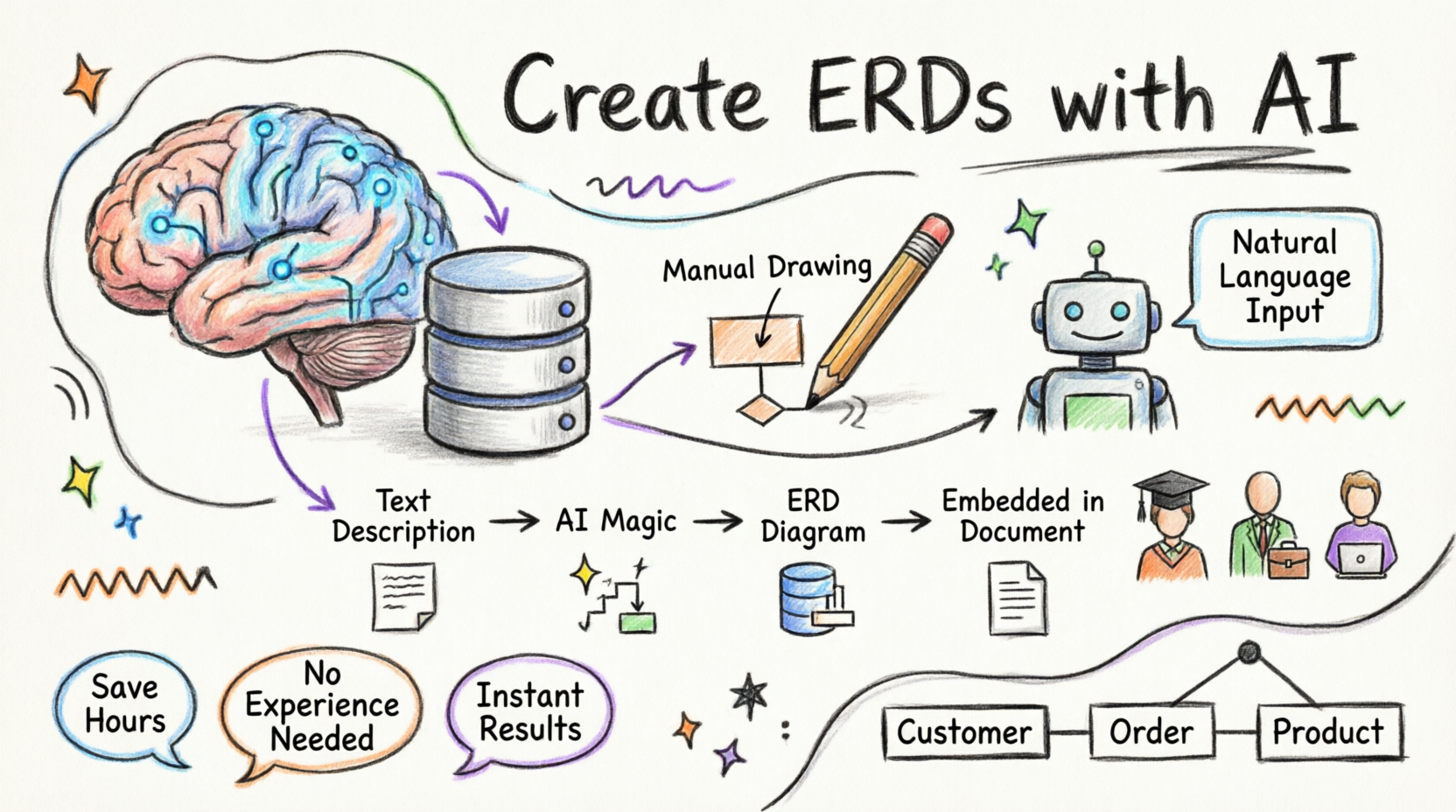
Feature Overview: What I Actually Experienced in OpenDocs
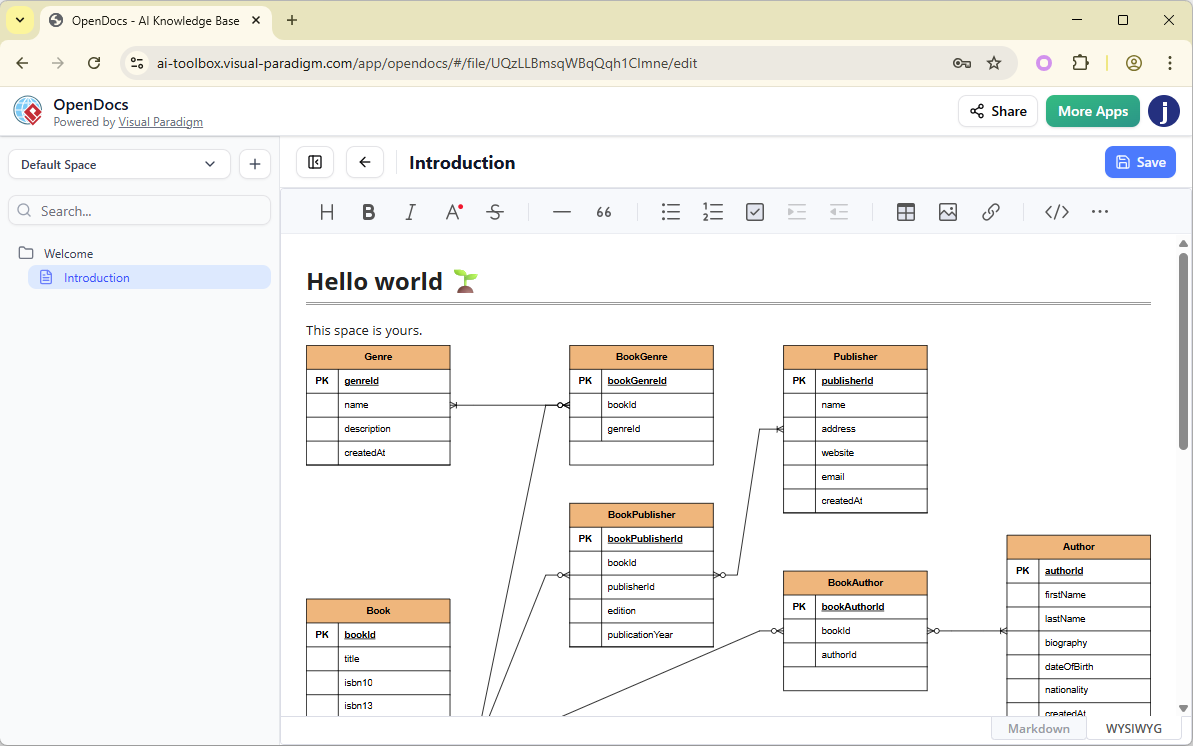
Before diving into the AI piece, I spent a day just exploring OpenDocs as a documentation environment. What struck me first wasn’t the AI—it was how seamlessly diagrams live inside the document itself. No exporting, no linking to external files, no version mismatches. The ERD I created was part of the page, editable in place, and instantly shareable with my client.
Core Capabilities (From My Workflow)
1. Embedded Diagram Components
I loved being able to drop a live ERD right into my requirements document. When my client asked, “Wait, can a member reserve multiple books?” I didn’t have to switch apps—I just clicked the diagram, adjusted the cardinality, and the update was visible to everyone in real time.
2. Dedicated Component Pages
For complex schemas, I created standalone ERD pages within the same OpenDocs Space. This kept my main documentation clean while giving technical stakeholders a dedicated space to deep-dive into the data model.
3. Manual Drawing Tools
Yes, the AI is flashy, but I still needed fine-grained control. The drag-and-drop editor felt familiar if you’ve used any UML tool, and the intelligent connectors saved me from the usual “why won’t this line snap to the entity?!” frustration.
4. AI-Powered ERD Generation
Here’s where things got interesting. I typed: “Design a library database with books, members, loans, and reservations, including overdue tracking and fine calculation.” Within seconds, OpenDocs generated a complete ERD with entities like Book, Member, Loan, Reservation, and even a Fine entity I hadn’t explicitly mentioned—but which made perfect sense given the context.
Why This Matters: Real Productivity Gains I Observed
In past projects, I’d spend half a day just sketching out initial ERDs before even discussing them with stakeholders. With OpenDocs’ AI generator, I had a draft ready in minutes. More importantly, the AI didn’t just dump boxes and lines—it inferred logical relationships and key constraints.
For example, when I described an e-commerce system, the AI automatically:
-
Made
OrderIDa primary key -
Linked
OrderItemsto bothOrdersandProductswith appropriate foreign keys -
Set cardinality to “one-to-many” for customer-to-orders
This wasn’t perfect out of the box—I still refined several relationships—but it gave me a 90% starting point instead of a blank canvas. Combined with OpenDocs’ collaborative editing, my client could comment directly on the diagram (“Should reservations expire after 24 hours?”), and I could iterate instantly.
Who Actually Benefits? My Take After Using It
Database Designers & Developers
If you’re building greenfield projects, this tool is a massive time-saver. I used it to prototype three different schema options for a client in one afternoon—something that would have taken two full days manually.
Software Architects & Business Analysts
I shared the OpenDocs Space with a non-technical product owner. Because the ERD lived alongside plain-language requirements, they could actually engage with the data model. One comment led to a crucial clarification about soft deletes that we’d otherwise have missed.
Project Teams & Stakeholders
The real win was alignment. Instead of emailing PNG exports or wrestling with Visio files, everyone worked from the same live document. Version history meant we could always roll back if an experiment didn’t pan out.
Step-by-Step: How I Created My First AI-Generated ERD
Step 1: Access the Insert Menu
I clicked the Insert button in the top bar of my OpenDocs document. Simple, intuitive—no hunting through menus.

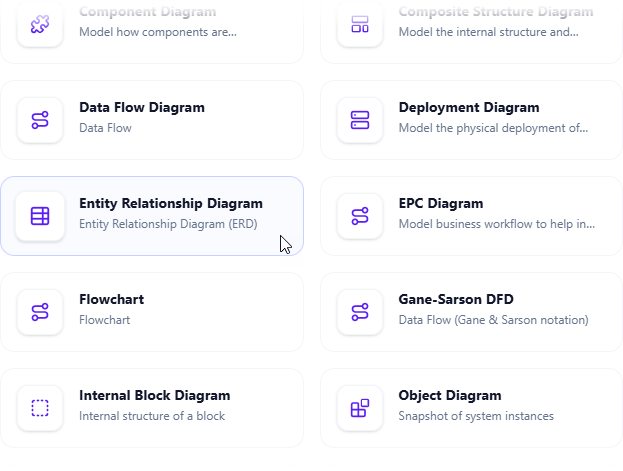
Step 2: Select Entity Relationship Diagram
In the dialog, I navigated to Diagrams > Entity Relationship Diagram. The interface felt clean and uncluttered.
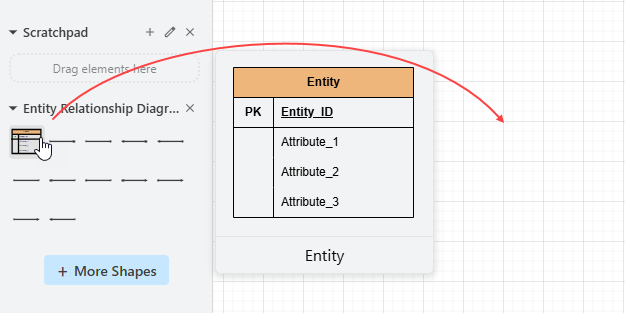
Step 3: Choose Your Approach
The editor opened with two clear options. Since I was testing the AI, I went straight for Create with AI in the top-right corner.

Step 4: Describe Your Requirements
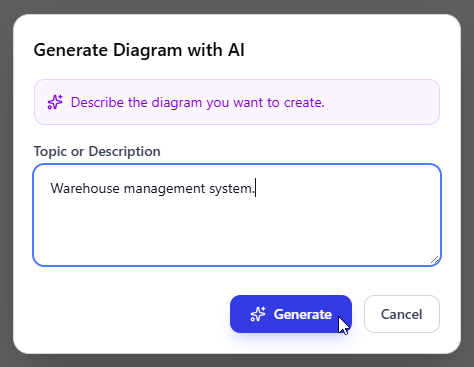
I typed my prompt naturally: “Create an online bookstore database with customers, orders, books, authors, and publishers, including inventory tracking and customer reviews.”
No special syntax, no training required—just plain English. I clicked Generate.
Step 5: Review the AI-Generated Diagram
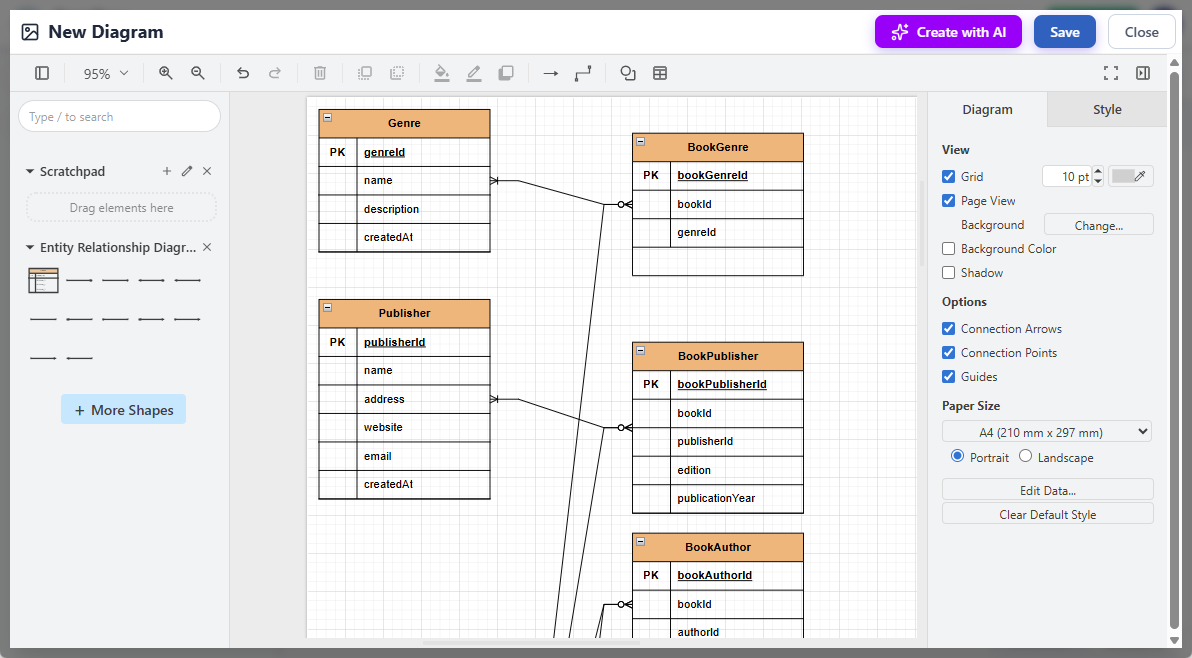
Within ~15 seconds, a full ERD appeared. It included:
-
Entities:
Customer,Order,Book,Author,Publisher,Review,Inventory -
Relationships with cardinality (e.g., one customer → many orders)
-
Attributes like
ISBN,order_date,rating -
Even a junction table for the many-to-many
Book–Authorrelationship
I was genuinely impressed. It wasn’t just structurally sound—it reflected domain logic I hadn’t explicitly stated.
Step 6: Refine and Customize
I adjusted a few things:
-
Added a
wishlistentity the AI hadn’t included -
Changed one relationship from “one-to-many” to “many-to-many”
-
Tweaked the layout for better readability
The manual editing tools were responsive and intuitive. No lag, no confusing menus.
Step 7: Save and Embed
I clicked Save, then Close. The ERD was now a live component in my document. My client could view it, comment on it, or even request edits—all without leaving the page.
Advanced Features I Discovered Along the Way
Seamless Collaboration
I invited my client to the OpenDocs Space. They added comments directly on the ERD (“What happens if a book goes out of print?”), and I could reply and update the model in the same thread. No more email chains with screenshot attachments.
Version Control
When I experimented with adding a subscription model, I could see exactly what changed from the previous version. This was invaluable for auditing design decisions later.
Cross-Platform Accessibility
I reviewed and tweaked the ERD from my tablet during a coffee meeting. The responsive design meant I didn’t lose functionality on smaller screens.
Export Options
When I needed to include the final ERD in a PDF proposal, I exported it as a high-res PNG. I also tried the SQL DDL export—a huge time-saver for handing off to developers.
Getting Started: Practical Notes from My Setup
This feature isn’t available in every Visual Paradigm tier. Based on my experience, you’ll need:
-
Visual Paradigm Online (Combo Edition)
-
Visual Paradigm (Professional Edition)
Make sure your workspace is updated to the latest version. The AI features rolled out in early 2026, so if you haven’t checked for updates recently, do that first.
One tip: Start with a clear, moderately detailed prompt. The AI handles nuance well, but vague inputs (“make a database for a store”) yield generic results. The more context you provide, the smarter the output.
New Conclusion: Would I Recommend This Tool?
After using OpenDocs’ AI ERD generator on a live project, my answer is a qualified yes—with enthusiasm.
What won me over:
-
The AI doesn’t replace expertise—it accelerates the tedious parts, freeing you to focus on architecture and edge cases
-
Embedding live, editable diagrams directly in documentation eliminates the “diagram drift” that plagues so many projects
-
The learning curve is shallow; I was productive within an hour
Where it still needs growth:
-
Very niche domain logic sometimes requires manual overrides (but that’s true of any AI tool today)
-
Advanced users might want more keyboard shortcuts for rapid editing
Final verdict: If you regularly design or document database schemas, OpenDocs’ AI ERD feature is worth exploring. It won’t make you a better database architect—but it will give you more time to be one. In a field where clarity and iteration speed matter immensely, that’s a meaningful advantage.
The barrier between idea and implementation really has never been lower. And for once, that’s not just marketing speak—it’s what I experienced.
References
- OpenDocs – AI-Powered Knowledge Platform: Official feature overview of OpenDocs as an intelligent knowledge base for creating, organizing, and sharing text documents and diagrams, developed by Visual Paradigm.
- OpenDocs | All-in-One Knowledge Base & Diagramming Tool: Main product page highlighting the Markdown editor, integrated diagramming, and AI-powered diagram generation from simple text descriptions.
- OpenDocs: AI-Powered Knowledge Management Platform: Announcement introducing OpenDocs as a next-generation AI-powered knowledge management tool with hierarchical structure, searchability, and an built-in AI assistant (published Jan 19, 2026).
- AI State Diagram Generator: New Support in OpenDocs: Update adding AI-powered State Machine (UML) diagram generation from text descriptions within OpenDocs (published Feb 11, 2026).
- AI Deployment Diagram Generator in OpenDocs: Release note on new AI-powered UML Deployment Diagram support and generation capabilities in the OpenDocs knowledge platform (published Feb 10, 2026).
- AI Component Diagram Generator Now in OpenDocs: Announcement of AI-powered UML Component Diagram generation integrated into OpenDocs.
- Visual Paradigm AI: Advanced Software & Intelligent Apps: Overview of Visual Paradigm’s AI tools ecosystem, prominently featuring OpenDocs as the central knowledge base and documentation hub.
- AI PERT Chart Generator in OpenDocs: Update adding AI-powered PERT chart creation from natural language project descriptions.
- Mastering the Visual Paradigm AI Ecosystem: Third-party guide discussing OpenDocs as a bridge between technical models and human-readable documentation.